Find an order or payment
For shift leaders and authorised staff investigating a bill or payment. In the
Staff app, open Settings → Orders or Settings → Payments under
History. These are separate lists with separate access permissions. Check
the working location before searching.
Find the order
- Open Orders. The initial date choice is Today.
- Choose Today, Yesterday, 7 days, 30 days, or Custom. The
seven- and thirty-day choices include today. These use the device's calendar
dates; they are not a trading-day or shift selector.
- Open Filters. Choose Status and Type where needed, then narrow by
Table, Order number, or Daily id (the trading-day number).
- Tap Show orders. Changing a choice inside the filter sheet is not the
same as submitting the search. Reset restores the default choices; tap
Show orders to run them.
- Open the matching row and compare its location, table or channel, items,
totals, payments, and bill status with the actual service.
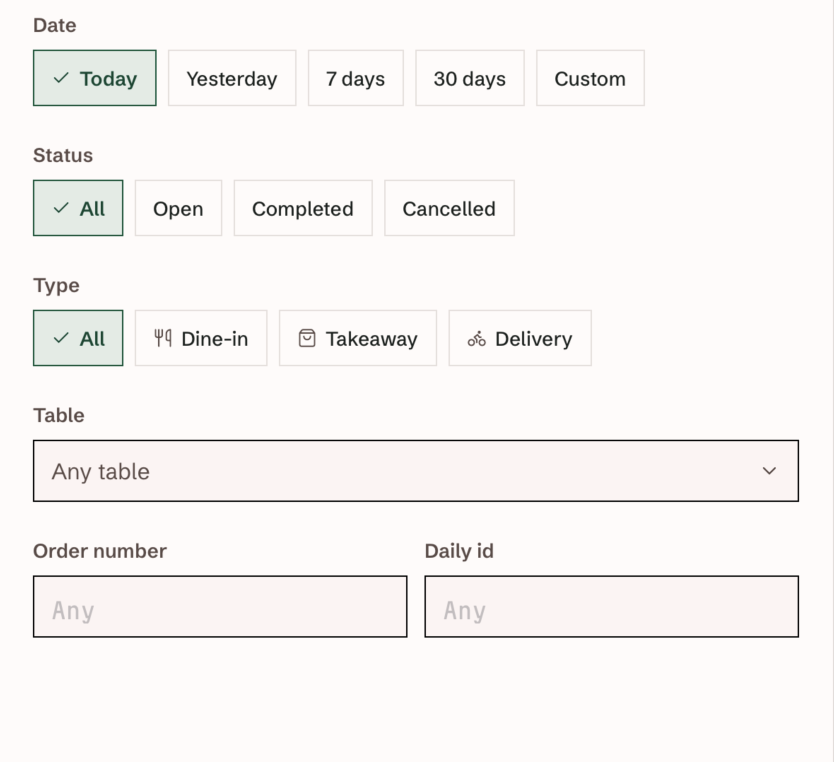
Filter controls from a local Staff app example, with no order or guest data
shown. The submission control is below this excerpt.
View the filter choices at full size.
Order dates filter when the order was last updated. A row can show an
earlier opening date even with Today selected, because the order changed
today. Do not treat that row as today's new sale merely because it appears in
this search. Use daily reports for the trading day's figures.
Open, Completed, and Cancelled are status groups. All includes
normal order states but excludes draft orders. Dine-in, Takeaway, and
Delivery are channel groups; Takeaway can include counter, kiosk, and shop
orders as well as pickup.
Order numbers can repeat across trading days. If several rows look similar,
check the date and daily number instead of selecting by the number alone.
Find the payment
- Open Payments and choose the date range.
- Open Filters. Select Method, Status, and Type as needed.
Type distinguishes Payment, Refund, and Pre-auth.
- For a card payment, you can narrow by Last 4 digits and Card brand.
Use the last four digits only; never enter a full card number. Changing away
from Card clears these card-specific filters.
- Set Minimum amount or Maximum amount if useful. Use the amount in the
displayed restaurant currency, with the maximum at least the minimum.
- Tap Show payments, then inspect the matching row. A row with a linked
order opens that order; a row without an order link does not establish which
bill should receive the money.
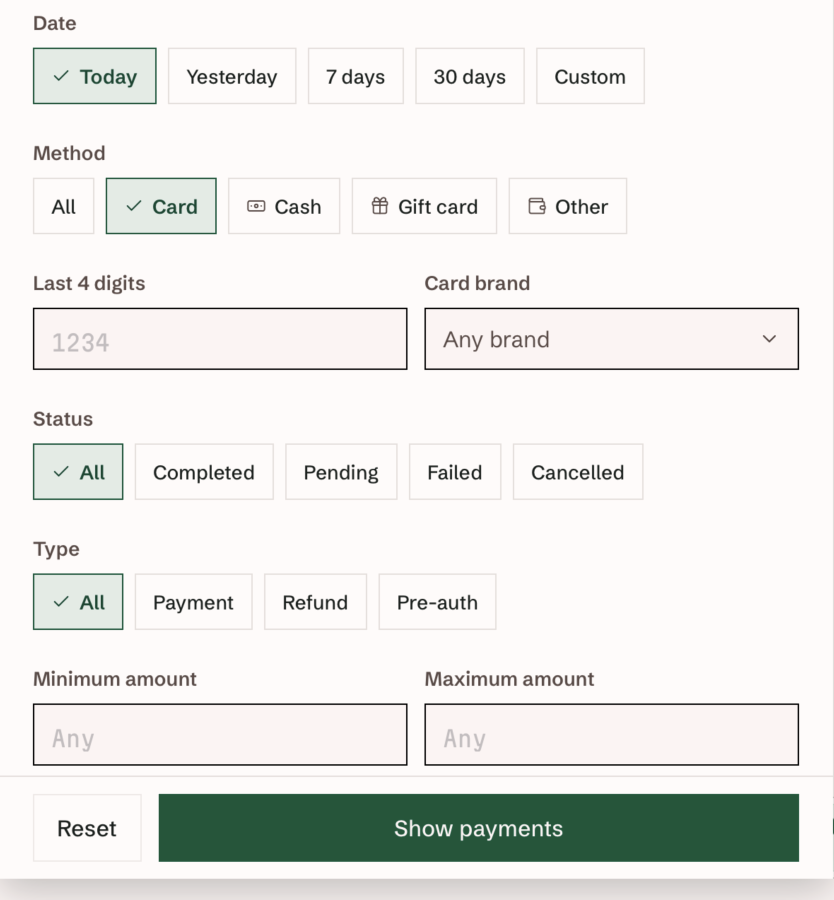
Card-specific filter controls from the local Staff app. 1234 is an input
placeholder, not a card from a payment record.
View the payment filters at full size.
Payment dates use the payment record's recorded timestamp, rather than its
last-update time. That differs from Orders' last-updated filter. A restored
Zettle payment can retain the original capture date even when its accounting
order and receipt are created later. Check the original capture date as well as
the recovery date when searching.
A Completed refund is money returned. A completed Pre-auth is an amount
authorised, not a completed sale payment. Inspect the action and the order
balance together before deciding that a bill is paid.
If you cannot find the record
- Check location, date range, status, channel/method, amount, and active
filters. A filter badge indicates additional criteria; the visible rows may be
only one page. Use Load more where offered.
- If a filter action is cut off or inaccessible, dismiss the sheet and use the
visible date presets or another authorised device/Console to investigate.
Report the device, orientation, app release, and layout to the
manager/support; do not clear app storage to repair a layout problem.
- Pull to refresh the current search. No orders or No payments means no
matching returned rows; a load error is not evidence that no record exists.
- Read Connection and sync if a saved
change has not reached TablePort. History search reads saved server records
and may not show unsynchronised work still protected on another device.
- For an uncertain card outcome, follow
Payment recovery with the shift leader. Do not
take another payment, recreate an order, or record cash just to make a row
appear.
Escalate with the location, order/daily reference, date range, method, amount,
filters, and exact error. Share payment references only through an authorised
support channel; keep guest contact details and card information out of public
screenshots.